
Automated data visualisation best practice in R: afcharts

We’re excited to announce that afcharts version 0.5.1 is now available! afcharts is an R package for creating accessible charts, helping you to follow the Analysis Function guidance on data visualisation for charts. The package is maintained by the Government Statistical Service (GSS) Presentation Champions Network. You can use afcharts to style static ggplot2 charts. For an introduction to the package see our previous afcharts blog post.
Installing afcharts
You can install afcharts from the Comprehensive R Archive Network (CRAN).
install.packages("afcharts")

# Attach packages
library("afcharts")
library("ggplot2")
Updates
Scale functions
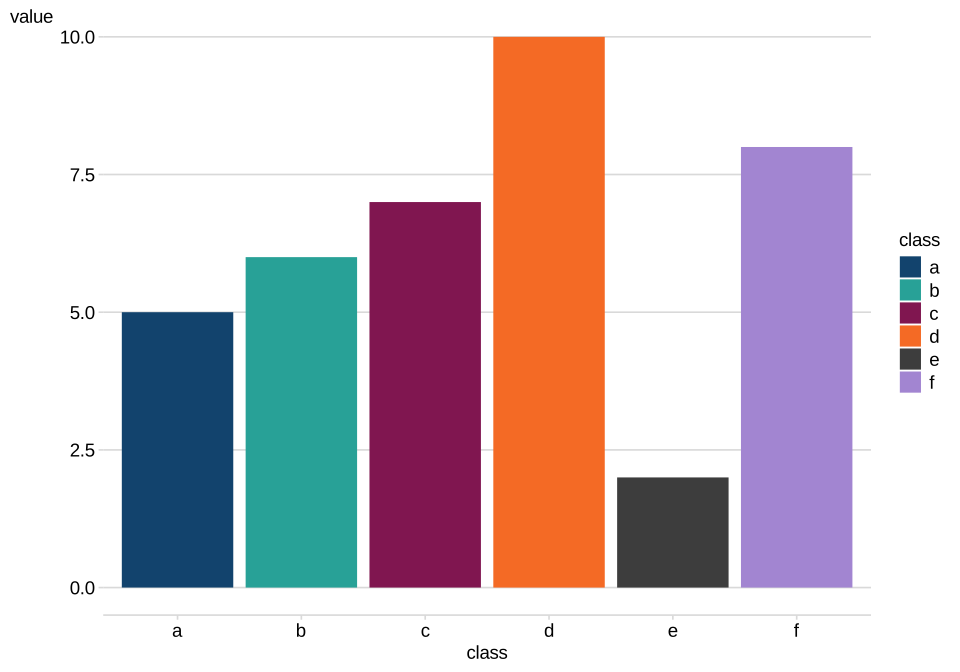
The afcharts scale functions, scale_fill_discrete_af and scale_colour_discrete_af, style the data elements of your chart using the Analysis Function colour palettes. Both functions have a palette argument, allowing you to set which colour palette to use.
We have renamed the “main” colour palette to “categorical” to match the name in the Analysis Function Colours Guidance. scale_fill_discrete_af and scale_colour_discrete_af now use the extended 6-colour categorical palette by default, rather than the original 4-colour version. They no longer warn if you use more than 4 colours. The following code now works automatically, without having to switch palette:
d <- data.frame(
  class = c("a", "b", "c", "d", "e", "f"),
  value = c(5, 6 ,7, 10, 2, 8)
)

ggplot(d) +
  geom_col(aes(x = class, y = value, fill = class)) +
  scale_fill_discrete_af() + # Colour bars using Analysis Function 6-colour categorical palette
  theme_af() # Apply Analysis Function theme
Figure 1: A bar chart showing the Analysis Function categorical palette
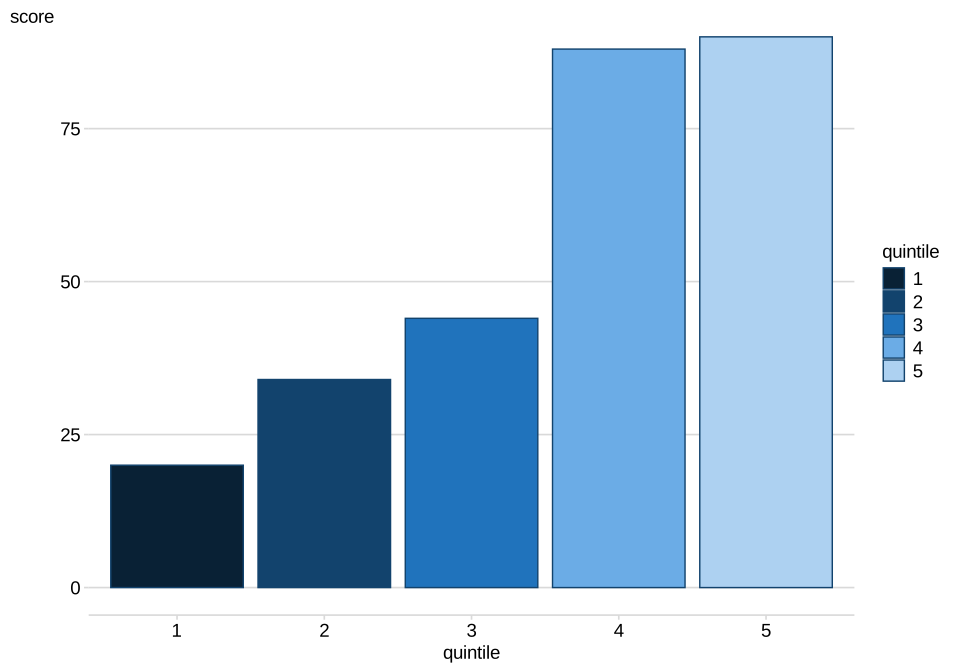
The Analysis Function sequential palette was recently expanded from 3 to 5 shades of blue. The afcharts sequential palette now includes all 5 shades.
This will be particularly useful for creating choropleth maps and displaying data split into quintiles. The Analysis Function guidance recommends outlining bars in dark blue when using the sequential colour palette. This has been made easier in afcharts by the addition of object af_dark_blue, which gives quick access to the hex code for the Analysis Function dark blue colour.
d2 <- data.frame(
  quintile = as.character(1:5),
  score = c(20, 34, 44, 88, 90)
)

ggplot(d2, aes(x = quintile, y = score, fill = quintile)) +
  geom_col(colour = af_dark_blue) +
  scale_fill_discrete_af(palette = "sequential") +
  theme_af()
Figure 2: A bar chart showing the Analysis Function 5 colour sequential palette
theme_af
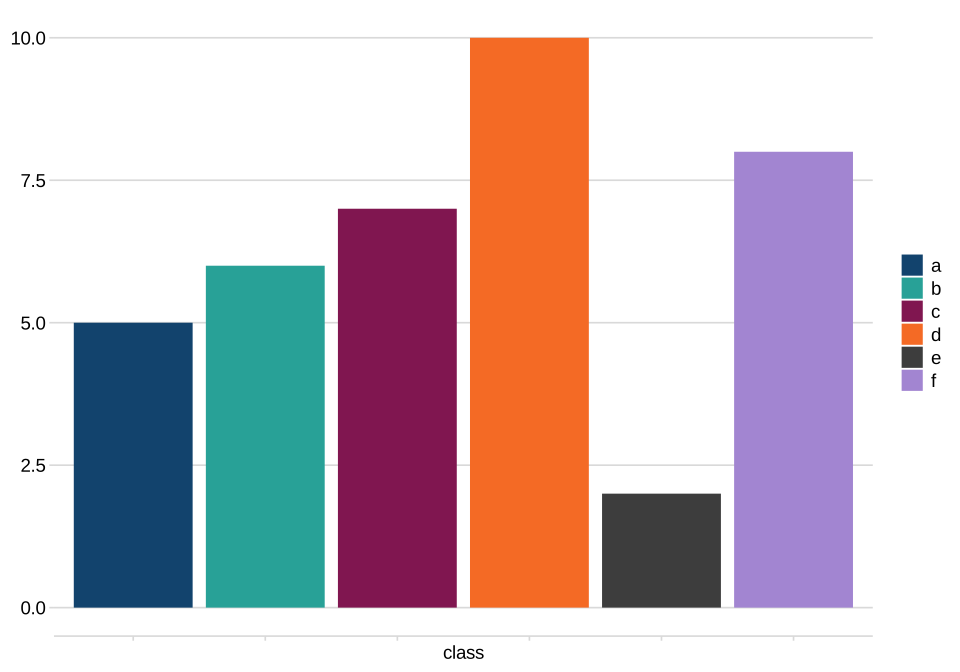
The theme_af function allows you to style the non-data elements of your chart, such as the background colour and gridlines, following Analysis Function guidance. theme_af has 3 new arguments, axis_text, axis_title and legend_title, to set whether to display axis titles or text and whether to display legend titles.
ggplot(d) +
  geom_col(aes(x = class, y = value, fill = class)) +
  scale_fill_discrete_af() +
  theme_af(
    axis_title = "x", # Show x axis title only
    axis_text = "y", # Show y axis text only
    legend_title = "none" # do not display legend title
)
Figure 3: A bar chart using the Analysis Function theme
theme_af now has more options for setting the position of the legend. You can now set the legend justification (for example, left, right, centre, top, or bottom).
ggplot(d) +
  geom_col(aes(x = class, y = value, fill = class)) +
  scale_fill_discrete_af(guide = guide_legend(nrow = 1)) +
  theme_af(legend = "top-left")

ggplot(d) +
  geom_col(aes(x = class, y = value, fill = class)) +
  scale_fill_discrete_af(guide = guide_legend(nrow = 1)) +
  theme_af(legend = "top-right")
Figure 4: A bar chart with the legend positioned top-left
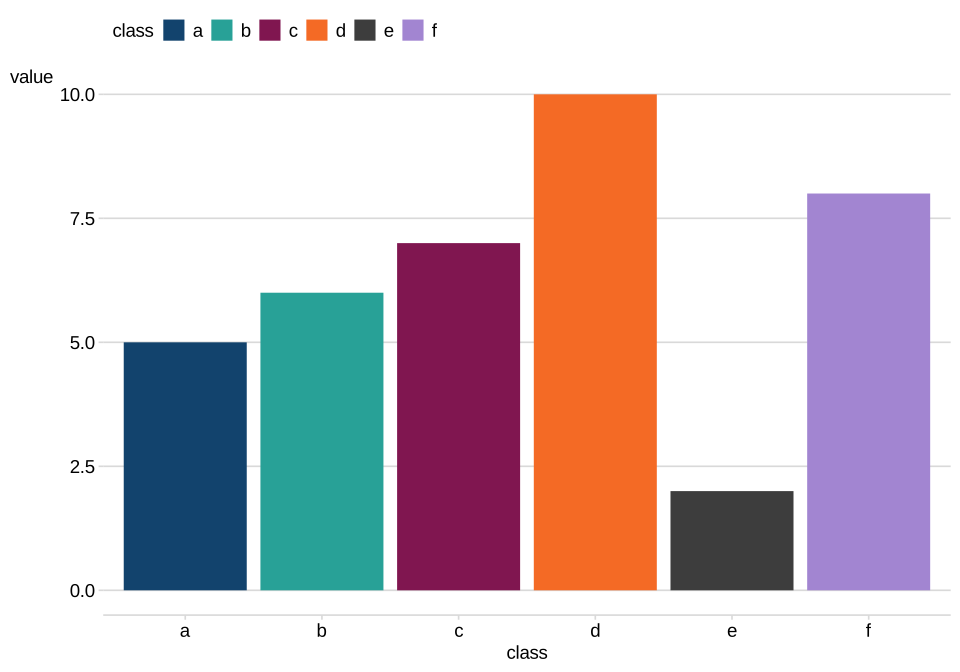
Figure 5: A bar chart with the legend positioned top-right
use_afcharts
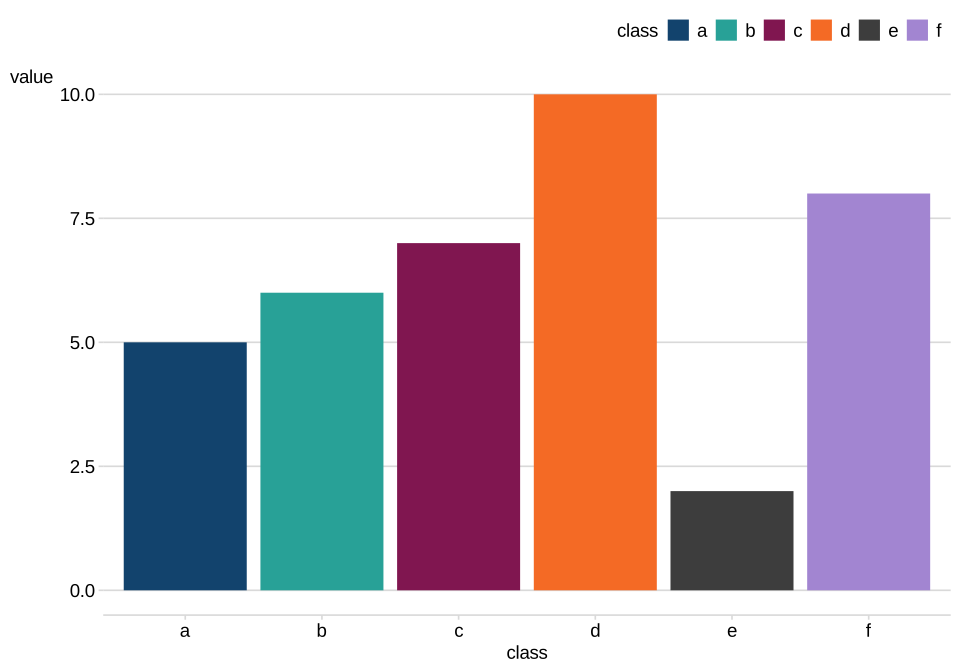
The use_afcharts function allows you to automatically apply the Analysis Function scales (for example, scale_fill_discrete_af()) and theme (theme_af()) to all your charts with no additional code.
use_afcharts()

ggplot(d) +
  geom_col(aes(x = class, y = value, fill = class))
  # scale_fill_discrete_af() and theme_af() automatically applied to chart
Figure 6: A bar chart showing the Analysis Function colour scales and theme
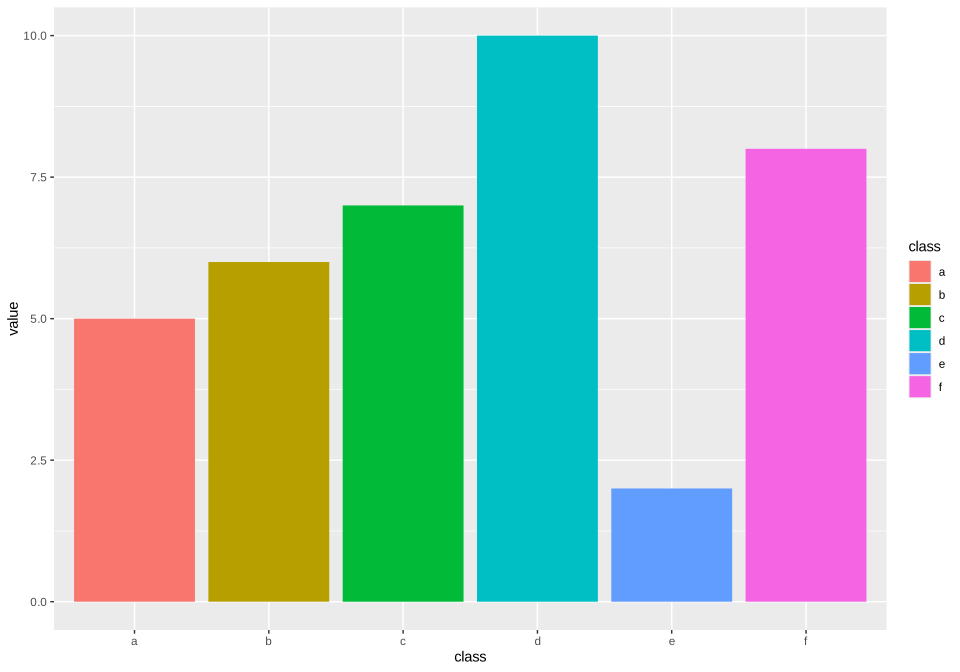
use_afcharts now has a reset argument, allowing you to turn off Analysis Function styling.
use_afcharts(reset = TRUE)

ggplot(d) +
  geom_col(aes(x = class, y = value, fill = class))
Figure 7: A bar chart showing default ggplot2 styling
Feedback and support
If you notice anything wrong with afcharts or have a suggestion for a new feature please raise an issue on the afcharts GitHub page.
The afcharts cookbook is a great place to start learning about the package. It contains a wide range of examples covering different chart types.
Acknowledgements
Thank you to the Government Statistical Service (GSS) Presentation Champions Data Visualisation tools group for their work on this release. If you’re a member of the Analysis Function and would like to join the afcharts development team, please contact the GSS Presentation Champions Network.
Olivia Box Power